So, another iPhone update has dropped. But here’s the thing: are you really understanding what’s going on beyond the headlines? It’s not just about new emojis, folks. These updates are crucial for security, performance, and, let’s be honest, keeping your phone from turning into a glorified paperweight. Let’s dive into why this update matters and what you, sitting there in your favorite kurta, need to know.
The Security Angle: Why Ignoring Updates Is Like Leaving Your Door Unlocked
Security vulnerabilities are like little cracks in your phone’s armor, and hackers? They’re always looking for those cracks. Each iPhone update patches these vulnerabilities. Think of it this way: are you using the same password for everything? It’s risky, right? Similarly, not updating your iPhone leaves you exposed. Apple regularly addresses security flaws in its iOS updates. A common mistake I see people make is thinking, “Oh, it won’t happen to me.” But, trust me, it can. As per the official Apple security releases , these patches are vital. For example, a recent update addressed a vulnerability that could allow hackers to access your camera remotely. Scary stuff! So , if you want to keep your personal information safe and avoid becoming a victim of cybercrime, then make sure to install the latest security patches when prompted.
Performance Boosts: Making Your Old iPhone Feel New Again (Almost)
Okay, let’s be honest, that iPhone 6 you’re clinging to might not feel as zippy as it once did. Software updates often include performance optimizations that make your phone run smoother and faster. Now, it won’t magically transform it into an iPhone 15 Pro, but it can improve things. These improvements often involve better memory management, more efficient battery usage, and tweaked animations. I initially thought these performance updates were just marketing fluff, but I realized they actually help to prolong the lifespan of older devices. And that’s good news for your wallet! One thing you absolutely must double-check after installing an update is your battery health. Go to Settings > Battery > Battery Health and check the Maximum Capacity.
New Features: Beyond the Hype, What’s Actually Useful?
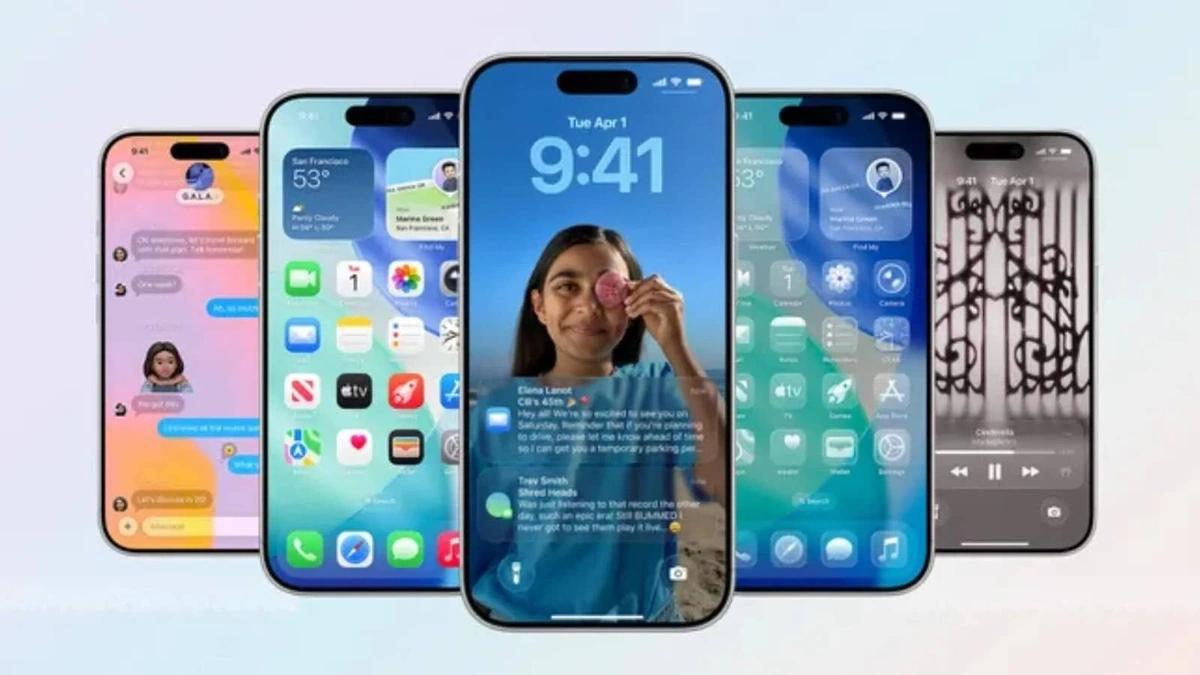
Every iOS update brings a slew of new features, but how many of them do you actually use? Let me rephrase that for clarity: it’s easy to get caught up in the hype, but some features are genuinely useful. Take, for example, the improved Focus modes, which allow you to filter notifications based on what you’re doing. Or the enhanced privacy controls, which give you more control over your data. What fascinates me is how Apple subtly improves existing features over time. It’s not always about flashy new additions; sometimes, it’s about refining what’s already there. Read here to understand more about why Apple updates are a must!
Potential Problems and How to Solve Them
Let’s be honest: installing an iOS update isn’t always smooth sailing. Sometimes, things go wrong. Maybe your phone gets stuck in a boot loop, or perhaps you encounter unexpected battery drain. What can you do? Firstly, always back up your data before updating. I can’t stress this enough. Secondly, if you encounter issues, try restarting your phone. Often, that’s all it takes. But if the problem persists, Google is your friend. Search for the specific issue you’re experiencing, and you’ll likely find a solution on Apple’s support forums or other tech websites. A common mistake I see people make is not having enough storage space available before updating. Make sure you have at least a few gigabytes free.
Preparing for the Next Big iPhone Upgrade
Looking ahead, what can we expect from future iPhone updates? Well, Apple is likely to continue focusing on security, performance, and privacy. We can also expect to see more integration with augmented reality (AR) and machine learning (ML). What’s intriguing is how these technologies will shape the future of mobile computing. Will we see a world where our iPhones become even more intelligent and personalized? It’s definitely a possibility. For now, though, keep your iPhones up-to-date and stay informed.
FAQ: Your Burning Questions Answered
Will updating to the latest iOS version slow down my older iPhone?
It’s a valid concern! While updates often include performance optimizations, they can sometimes strain older hardware. Before updating, ensure you have enough storage space and consider backing up your data just in case.
How do I back up my iPhone before updating?
You can back up your iPhone to iCloud or your computer. Go to Settings > [Your Name] > iCloud > iCloud Backup and tap “Back Up Now.” Alternatively, connect your iPhone to your computer and use iTunes (or Finder on macOS Catalina or later) to create a backup.
What if I don’t have enough storage space to update?
Free up space by deleting unused apps, photos, and videos. You can also offload apps, which removes the app but keeps its data on your device. This is found in iPhone Storage settings.
How long does an iPhone update usually take?
It varies depending on your internet connection and the size of the update. Generally, it takes between 30 minutes to an hour.
What if my iPhone gets stuck during the update process?
Try restarting your iPhone. If that doesn’t work, you may need to put your iPhone into recovery mode and restore it using iTunes (or Finder).